For Windows PC:
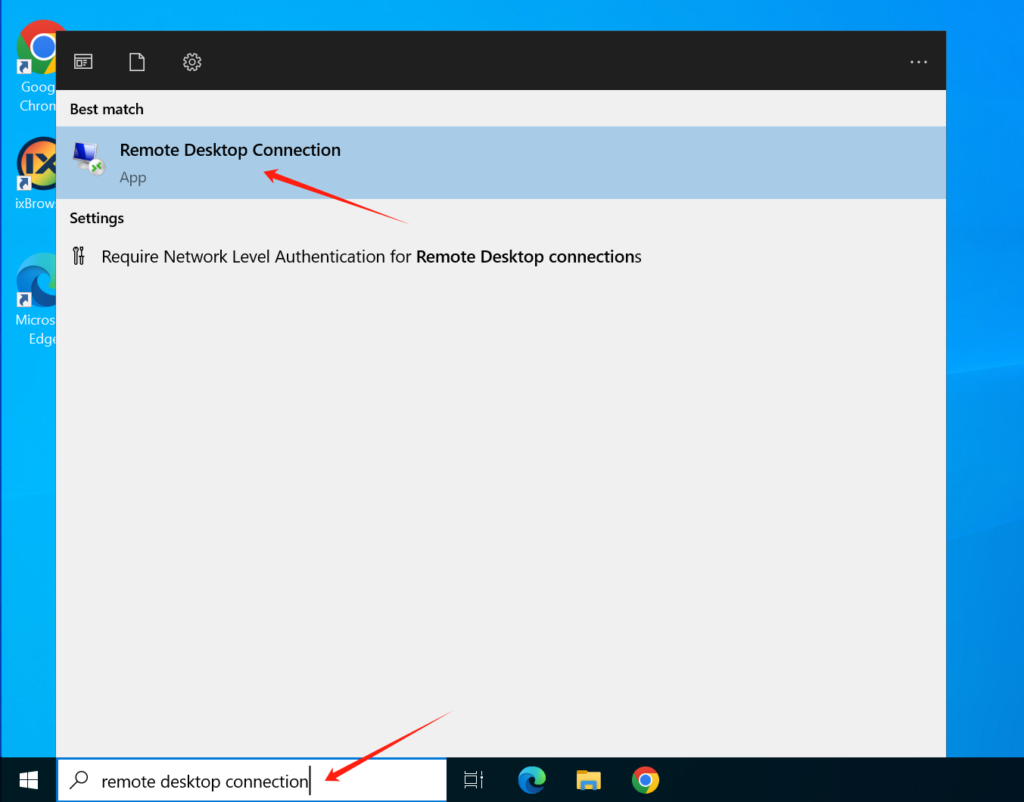
In the search box on the taskbar, type Remote Desktop Connection, and then select Remote Desktop Connection.
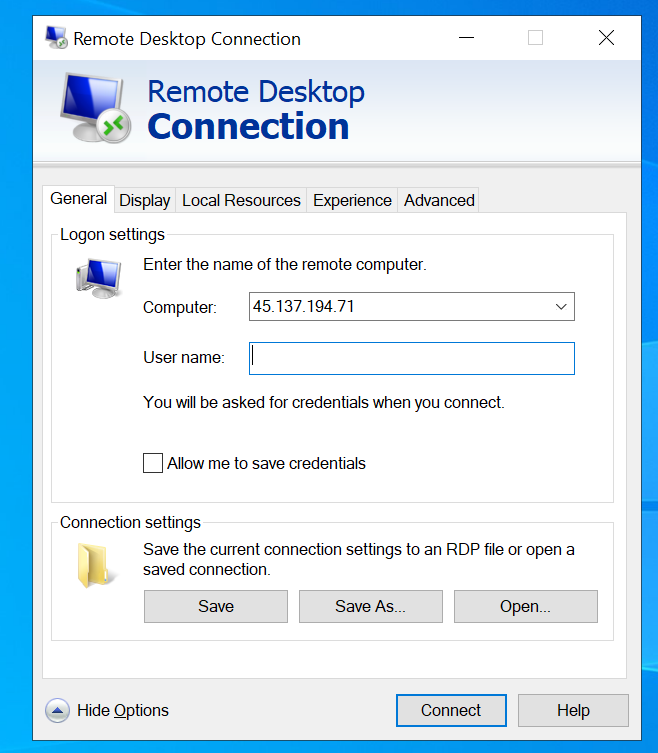
In Remote Desktop Connection, type 45.137.194.71, input the user name an password we provide, and then select Connect.
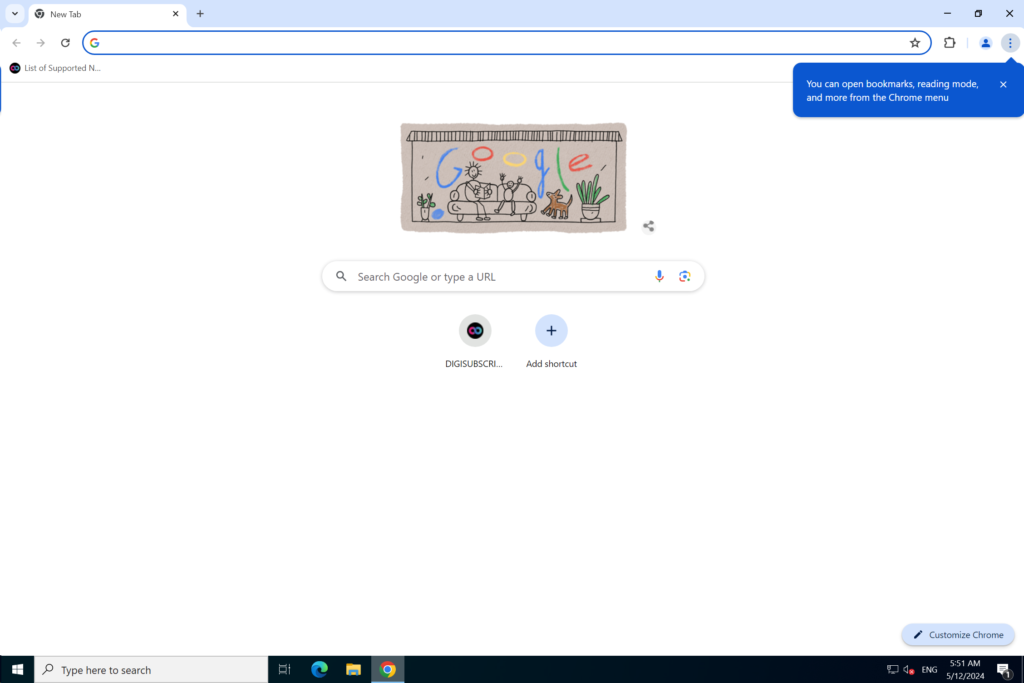
Then you can log in the remote computer, double click the Google Chrome browser on desktop, input any newspapers URL or select from https://digisubscription.com/list-of-supported-newspapers-websites
For Mac PC:
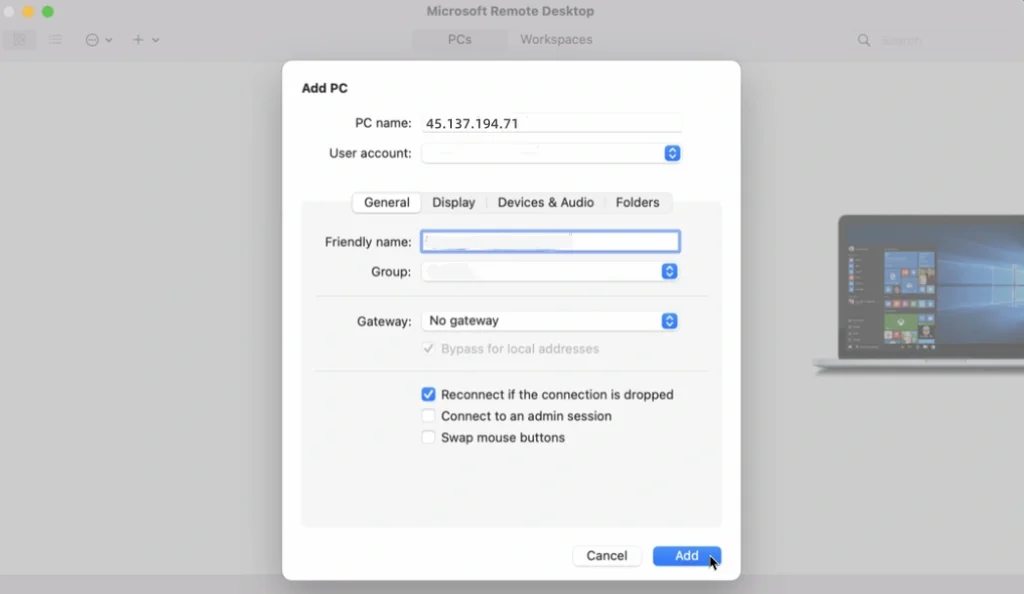
You can connect to a remote Windows computer from a Mac if you install the Microsoft Remote Desktop app from the Mac App Store. Launch the app and grant the necessary permissions. Click the Add PC button.

Type 45.137.194.71 in PC name, input the user name and password we provide, and then select Add.
Click the icon for the remote computer to connect. Move your cursor to the top of the screen to display the menu bar for the remote desktop app. From the Window menu, you can change the size of the window and close the connection.